Learn more

Showing posts with label Email. Show all posts

Tuesday, May 1, 2018

Indexing .EML Email Files for Search

Imagine having a Windows folders containing thousands or even millions of .eml email files. One or more of them may contain information of historical or legal significance.

Other than opening each email file individually and reading them, how you can sort through them all to find the few that you need?

MailDex 2018 can help you organize your .eml email files and search them instantly. It also works with .msg, .pst, .ost and .mbox email files, too. 

How to index and search .eml files


MailDex is simple to use.  After installing MailDex on your Windows device and starting the software program,  you need to perform two simple steps:  1.  Create a project, and 2.  Add emails to your project.

To create a project, click the Add Project button and give your project a name.

An arrow pointing to the location of the Create Project button for an email indexing project in MailDex.
Click the Project button to add an email indexing project

Next, add emails to the project using the "Add Emails" button

Image shows the location of the Add Emails button in the MailDex UI.
Add email content to your MailDex project
Select the email content you want MailDex to index for you.  MailDex will optionally search out email content on the drive you choose.  Add single email files, or add folders with emails.

MailDex will begin the indexing process.  When it's finished,  use a simple search to quickly locate emails containing your search term.  More advanced users can create complex searches.

Screen shot of MailDex email search page.
Search your index emails

For more information or a 15 day free trial, visit the MailDex 2018 home page.


Thursday, February 25, 2016

MBOX Viewer: PstViewer Pro Supports MBOX Email

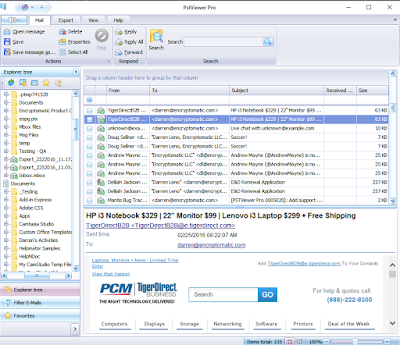
The latest version of PstViewer Pro software (8.0) adds support for MBOX email files.   This is useful for anyone who wants to manage email content from email clients that utilize MBOX, such as Mozilla Thunderbird.

View of PstViewer Pro with emails displayed from a MBOX file.
PstViewer Pro now supports MBOX viewing and conversion.


What is MBOX?


Mbox has never been formally defined as a formal specification.  The term is applied to a grup of email messages that have been stored as plain text in a single file (mbox).  The email header information is broken out, including the fields holding the From/To/Subject and Date fields.  Though the text portion of email messages can be viewed by a standard text viewer, PstViewer Pro is able to organize the information so it appears in an organized mail list.

How to Open a MBOX File?


To open a MBOX file and view the emails inside with PstViewer Pro, first locate the file with the Explorer Tree, and select it.

PstViewer Pro will parse the MBOX file and display the individual emails in the mail list. To view any email in the list, just click on it.

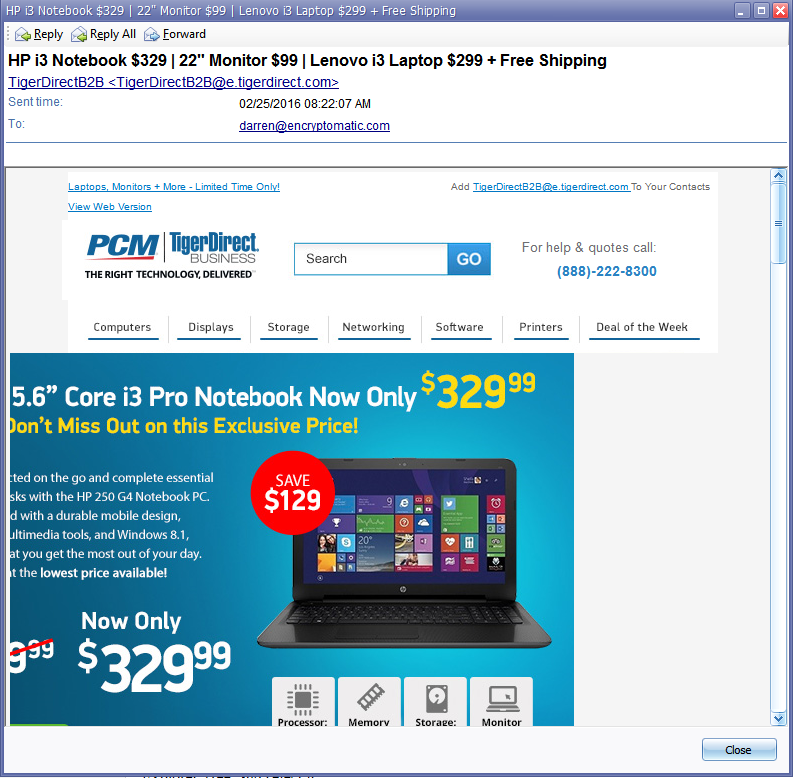
You can open an email to full view by double clicking on it.

Email message from an MBOX file is shown in full screen.
Email from MBOX file shown full screen

How to Convert Emails from MBOX to PDF

MBOX to PDF export capabilities are included with PstViewer Pro. You can export all selected emails and most file document file attachments into the PDF file.

To convert Mbox to Pdf, follow these steps.

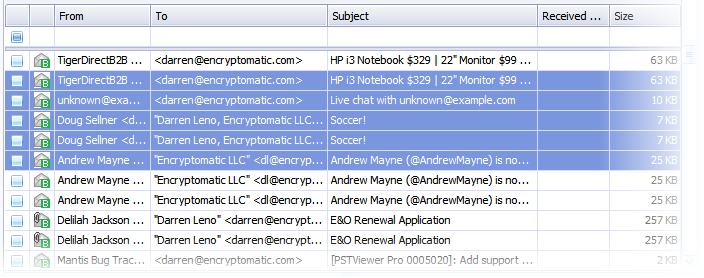
First, select one or more Mbox emails from the mail list. When an email is selected it is highlighted.  To choose all emails in the list, type Control-A.  To select emails individually, hold the Windows control key and click on the desired emails.


Screen shot of emails in a list, highlighted blue.
Select Mbox Emails to Export to PDF

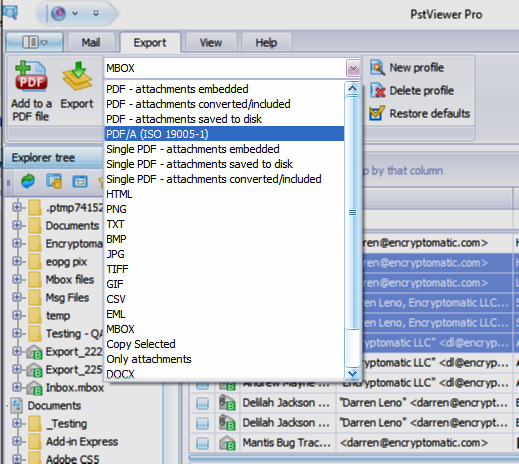
Second, go to the Export tab and choose from the different PDF export options


Screen shot showing how to select the PDF export format from a dropdown list.
Choose the PDF export format on the Export tab
Lastly, click the "Export" button.


We hope that you will find MBOX support a useful new feature for PstViewer Pro.  Please post any questions you have in the comments below, or email supportline at encryptomatic.com.  We're always happy to hear from you!


Wednesday, January 13, 2016

How to Import Email Messages to an Excel Spreadsheet

Ann P. called today with a question:
"Our company is involved in a lawsuit. The attorney wants my boss to review a large email set. He lives in Microsoft Excel and wants me to convert the emails to Excel for him.  How can I do this?"

Screen shot of PstViewer Pro email viewer with CSV export profile selected.
PstViewer Pro Export Menu

Spreadsheets like Microsoft Excel are a common and useful way to organize numbers and data.  Once in a spreadsheet, it is easy to view, sort, organize, search, and manipulate the data.  Although there are probably better options for reviewing email, such as our PstViewer Pro application, we understand that converting email to use in a spreadsheet can be very useful.

Encryptomatic's PstViewer Pro email viewing software for Windows has the ability to convert selected email messages to CSV format which can easily be imported to Excel, Calc, and other spreadsheets.   The way it works is simple:  just select the email messages from the mail list, choose "CSV" from the export box, and click "Export."  You'll be asked to select a name and a folder for your CSV file.

Screenshot that shows a marked image diagraming how to use PstViewer Pro software to convert email messges to CSV format.
Convert Email to CSV/Excel spreadsheet format.

When PstViewer Pro finishes with the export operation, you can now open your .CSV file in any spreadsheet app.

PstViewer Pro can export to CSV from Outlook .pst, .ost and .msg email files. It also supports .eml and soon MBOX to CSV export.


You can download a free trial of PstViewer Pro here.  If you have any questions, just posted them below int he comments.